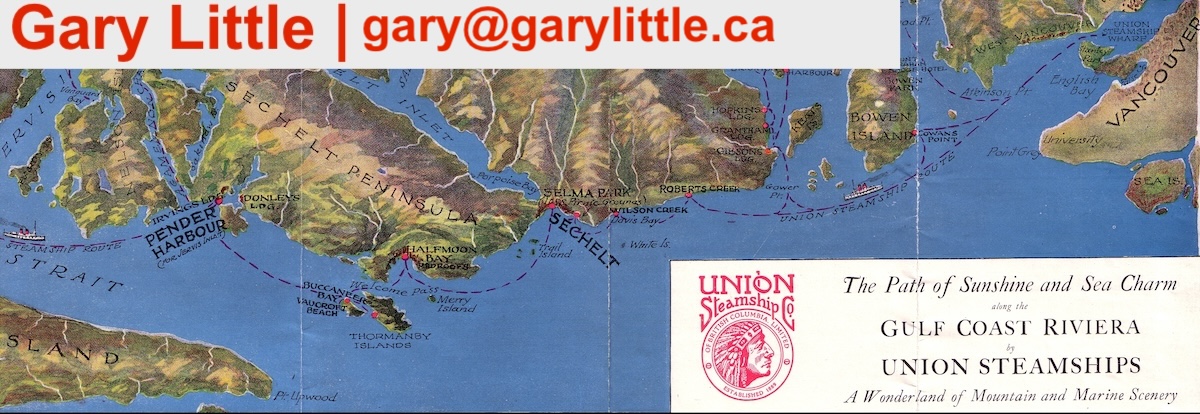
The map below shows the locations of interesting waterfalls in the Sunshine Coast area of British Columbia.
Take a look at these other interactive maps created by Gary Little:
Viewing. Click a marker on the map (or the name or ID number of a waterfall in the sidebar), to see a photo of the waterfall (if available) in the sidebar. Click it again to hide the photo. When you do this, the map pans so that the location of the waterfall is at the centre of the map.
Zooming. Change the scale of the map by using the and controls on the left side of the map. Another way to zoom in and out is to double-click the mouse at a location (outside the area of a marker) where you want the map centered: a regular double-click zooms in one level, a double-click using the right mouse button zooms out one level. (On a Macintosh mouse with only a single button, hold down the Control key while double-clicking to zoom out one level.)
You can zoom in to a specific area of the map by dragging a rectangle across the area of interest. To do this, hold down a Shift key while clicking and dragging the mouse from one corner of the rectangle to the opposite corner, then release the mouse button. To cancel the operation, release the Shift key before releasing the mouse button.
Centering. Centre the map around a location by double-clicking (outside the area of a marker) at the desired location (this also zooms the map in by one level).
Panning. View neighbouring areas by clicking (outside the area of a marker) and dragging the mouse or by using the four panning arrows in the top left corner of the map.
Changing View. Select a standard street map view, a satellite view, or a terrain view by using the Map, Satellite, and Terrain buttons in the top right corner of the map. (To show satellite imagery with street names, check the Show labels box which appears in a drop-down menu beneath the Satellite button when you click it.)
Printing. When you print the map, the list of waterfalls appears below the map.